
How to Install an M.2 NVMe SSD in a Desktop PC
This guide is part of the PC upgrade how-to series, designed to help you safely install and upgrade hardware in desktop systems.
Installing an M.2 NVMe SSD is one of the fastest ways to improve system performance in a desktop PC. NVMe drives offer significantly higher speeds than traditional SATA SSDs, resulting in faster boot times, quicker application loading, and improved overall responsiveness.
This guide explains how to install an M.2 NVMe SSD step by step, including what to check before installation and how to safely complete the upgrade.
What you need
Before installing an M.2 NVMe SSD, make sure you have the following:
- M.2 NVMe SSD (2280)
- Available M.2 slot on the motherboard
- Small screwdriver (for mounting screw)
- Optional: thermal pad or heatsink (if not included)
Recommended components
Before you start
Before installing the SSD:
- Turn off the computer completely
- Disconnect the power cable
- Ground yourself to avoid static damage
- Locate the M.2 slot on the motherboard
Most modern desktop motherboards include at least one M.2 slot, typically located near the PCIe slots or CPU socket.
Installation steps
- Locate the M.2 slot on the motherboard
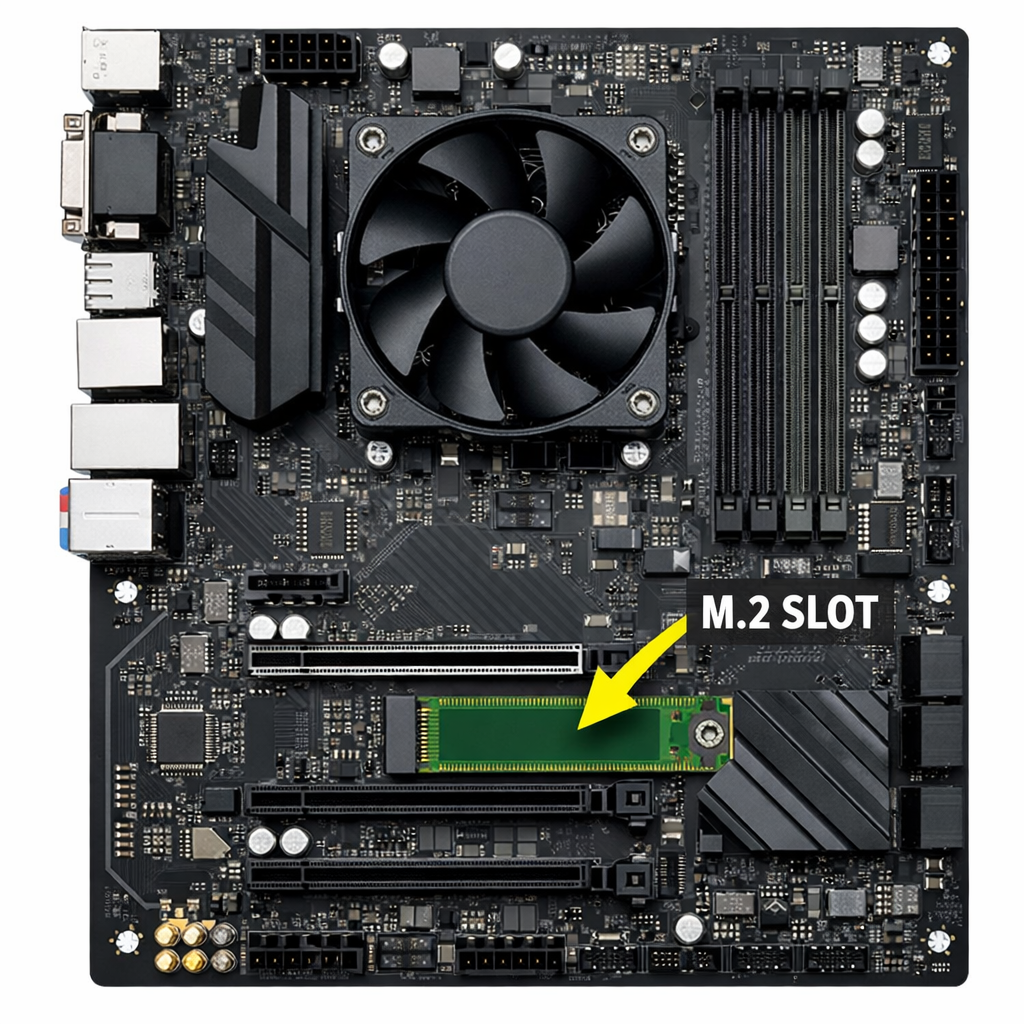
- Remove the mounting screw from the slot
- Insert the NVMe SSD at a slight angle (around 30 degrees)
- Gently push the SSD down until it aligns with the mounting point
- Secure the SSD using the mounting screw
Make sure the SSD is firmly installed but do not overtighten the screw.
After installation
After installing the NVMe SSD, you have two main options:
- Install a fresh operating system
- Clone your existing system to the new SSD
If you want to keep your current setup, follow the How to clone a hard drive to an SSD guide.
Important things to check
- The SSD must be detected in the BIOS before use
- Some systems require enabling NVMe support in BIOS settings
- Older systems may not support booting from NVMe without configuration
FAQ – Installing an NVMe SSD
Do I need a SATA cable for an NVMe SSD?
No, NVMe SSDs connect directly to the motherboard via the M.2 slot and do not require cables.
Can I use an NVMe SSD in any desktop PC?
Only if the motherboard includes an M.2 slot with NVMe support.
Is NVMe faster than SATA SSD?
Yes, NVMe drives are significantly faster than SATA SSDs.
Do I need a heatsink for NVMe SSD?
Not always, but it can help maintain performance under heavy load.